
Set up product specifications
Lensatic can show up to six specifications for each product, such as weight or strength, plus two “Made for” values such as terrain or skill level. You add each value once, in a product metafield, and the theme shows it on product cards, product pages and in comparisons.
Before you start
Pick the values your shoppers compare before they buy. For a carabiner that might be weight, strength and gate opening. For a jacket, weight and fit.
Note
To create metafield definitions, your staff account needs access to Settings in your admin.
Create the metafield definitions
-
In your admin, go to Settings > Metafields and metaobjects > Products.
-
Click Add definition and enter a name, for example Weight. The namespace and key are filled in for you, here
custom.weight. -
Choose a type. For values shoppers should filter by, use Integer or Decimal.
-
Select Storefronts, so the theme can read the values, then save.
-
Repeat for each specification, then add the values on each product page in your admin.
Caution
Measurement types, such as Weight or Dimension, store a unit with the value but can't be used as filters. If shoppers should filter by a value, use Decimal and set the unit in the theme.
Connect them in the theme
In the theme editor, open Theme settings > Specifications. Each of the six slots has the same fields:
| Field | What it does | Example |
|---|---|---|
| Name | The label shoppers see. | Weight |
| Metafield | The definition you created, as namespace.key. | custom.weight |
| Unit | Shown after the value. Leave it empty if the metafield already stores a unit. | g |
| Better value | Adds a sort option and marks the best value when shoppers compare products. | Lower |
| Word for the lowest value | Used in sort options and comparisons. | lightest |
| Word for the highest value | Used in sort options and comparisons. | heaviest |
Tip
Turn on Enable product comparison in the same panel to let shoppers compare up to four products side by side.
Add “Made for” values
“Made for” describes what a product is made for, such as terrain or skill level. Product pages link each value to the filtered collection, and comparisons show the values side by side.
Create a metafield of type Single line text, or a list of it, for example custom.terrain. Then enter its name and key under Made for.
Note
Add the same metafields as filters in the Search & Discovery app, so the links on product pages open a filtered collection.
Where specifications appear
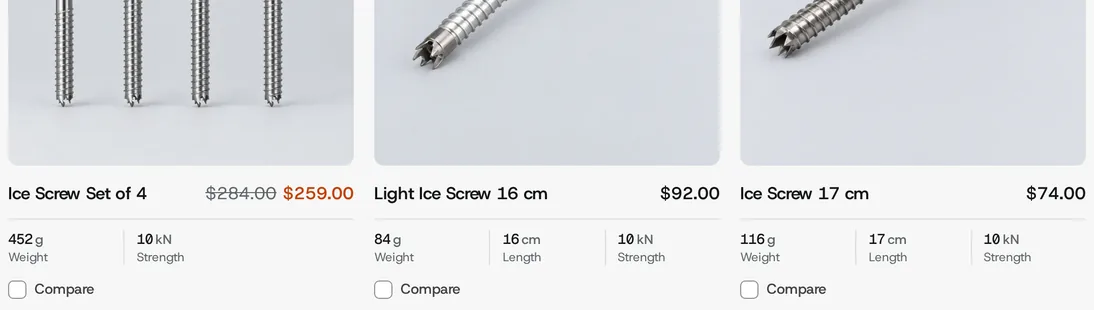
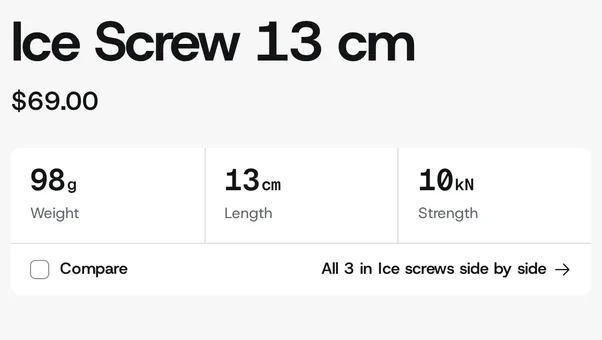
- On product cards, when Show key specs is on in Theme settings > Product cards.
- On product pages and in specification tables.
- In comparisons, when product comparison is on.
- In sort options, for every specification with a Better value.
Values use the Specification font you choose in the same panel.
If a value doesn't show
- Check that the metafield in the theme matches the definition exactly, for example
custom.weight. - Check that Storefronts is selected in the definition.
- Check that the product has a value for that metafield.
Still stuck? Contact support and tell us which product and which specification.